
Hardware FAQ
1. Aero
All the Quick Start Guide are on Quanser Github page, please visit Aero 2 Quick Start Guide.
2. QBot Platform / Mobile Robotics
All the Quick Start Guide are on Quanser Github page, please visit Mobile Robotics Lab Quick Start Guide.
All the Quick Start Guide are on Quanser Github page, please visit QBot Platform Quick Start Guide.
3. QArm mini
All the Quick Start Guide are on Quanser Github page, please visit QArm mini Quick Start Guide.
4. QArm
All the Quick Start Guide are on Quanser Github page, please visit QArm Quick Start Guide.
5. Qube Servo
All the Quick Start Guide are on Quanser Github page, please visit Qube 3 Quick Start Guide.
6. QDrone / Autonomous Vehicle Research Studio
All the Technical Resource are on Quanser Github page, please visit Setup for Autonomous Vehicles Research Studio.
All the Technical Resources are on Quanser GitHub page, please visit AVRS IP Address.
7. QCar / Self-Driving Car Studio
All the Quick Start Guide are on Quanser Github page, please visit Self-Driving Car Studio Quick Start Guide.
8. Drone / Autonomous Vehicle Research Studio
All the Technical Resources are on Quanser Github page, please visit Joystick Troubleshooting
9. Ground Control PC
The ground station PC indules a 30-day trial version of MATLAB®. If the trial has expired, please update this to use a permanent license using the Activate MATLAB application. Make sure MATLAB® includes: Simulink®, MATLAB Coder, Simulink Coder, and Control System toolbox.
10. General
For products not in the Quanser Academic Resources, please visit our resources page: https://www.quanser.com/resources/ or contact tech@quanser.com for more information.
Most resources can be found on our GitHub, please visit https://github.com/quanser/Quanser_Academic_Resources
Please reach out to tech@quanser.com if you require instructor resources. Access is limited to faculty and instructors from verified academic institutions.
11. Data Acquisition (DAQ) Device
I’m getting the following error when trying to use the Q2-USB or Q8-USB DAQ:
Support for the given board type does not appear to be installed. Verify that you have selected the correct card in the HIL Initialize block or hil_open function.
Try to reconnect the Q2-USB or Q8-USB to your computer. To do this, power off the device, disconnect the USB, reconnect the USB cable, and then power it ON. Then test to see if this resolve the issue. If that doesn’t resolve the issue then you may need to reinstall the USB drivers. Please download the following guide for the instructions: Quanser USB Device Driver Reinstallation
The Q2-USB and Q8-USB have ‘Normal Mode’ and ‘Fast Mode’ options that determine the max samping rate that can be reached.
- Fast Mode: The base communications rate is 125 us but the effective control rate is 4000 Hz. This mode is very intensive on the CPU and requires a higher end PC to reach the high control rates.
- Normal Mode: The base communications rate is 1 ms but the effective control rate is 500 Hz. This mode is not CPU intensive and will generally work well on most PCs.
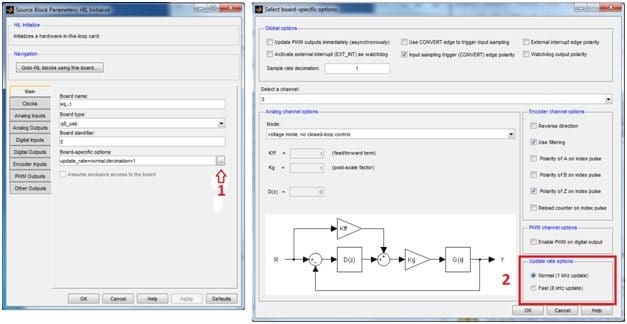
The board specific options are on the main tab of the HIL Initialize block. There should be a “…” button to the right of the boards-specific options which will bring up a second dialog where you can switch between normal and fast modes.
Alternatively, change the board specific options directly on the text line from “update_rate=normal” to “update_rate=fast”. If the string isn’t currently in the list of options, then just append it to a list (options are separated by semicolons e.g. update_rate=fast;ext_int_polarity=0; etc).
This image is an example of the Board-Specific Options window when Q8-USB DAQ is selected.
After a PC or laptop resumes from sleep mode, the encoders on certain DAQ devices stop working. Refer to Appendix C of your QUARC Installation Guide. It gives you instructions on how to change the default settings of the Power Management software on Windows 7 to prevent the system from sleeping. Go to Control Panel | Hardware and sound | Power Options | and click on “change when the computer sleeps“. Set the “turn off the display” and “Put the computer to sleep” to “never“.
12. Linear Servo (IP02)
Here are some tips on how to extend life of the plastic gears:
- After installing the new plastic pinion, make sure it runs freely along the center of the track. Move the cart manually to verify this, the track must be clean and free of any debris between its teeth.
- The track should be clamped down or secured to the table so it does not move while the experiment is being run.
- The provided small plastic piece that supports the track must be placed in the center so it can provide extra support.
- Loose the two screws that hold the track at the ends, level the track with the support in its center and then tighten these screws at last, after that all other components and the track are in place.
- Before running the IP02 experiment, make sure you set the Gain to 1 on your power amplifier.
- When running the position control experiment, make sure the setpoint or desired command is not too aggressive. Start with lower amplitudes.
Technical Support
For over 20 years, Quanser has put as much emphasis on fostering and building our relationships with customers as on developing the best functional solutions.