
Software FAQ
1. Quanser Interactive Labs (QLabs)
To run both virtual and physical systems on the same computer, you will need to install the QUARC Real-Time Control software and QLabs as part of the installation process for QUARC. Make sure you remove your existing version of QLabs first.
Please refer to the Hybrid Configuration Guide included with QUARC documentation for more information.
Quanser Interactive Labs has not been thoroughly testing on virtual machines, although it may be possible. From what we’ve seen the Quanser Interactive Labs application typically doesn’t perform well on virtual machines in terms of real-time and GPU performance.
You can add Session Assistants if you would like to give someone else permission to add students to your lab on your behalf.
If you would like to completely transfer the session to another user (i.e. someone is taking over your lab), please contact tech@quanser.com.
Yes, Session Assistants can add students to your lab on your behalf. Click on the Sessions tab on the top of the screen, then click on your lab session. Scroll to Member List and add the user you would like to make a Session Assistant. Once added, select the user’s email using the checkbox and click on Update Session Role. Select Assistant and click Save.
How do I get started with the Virtual Aero 2? Please visit QLabs Virtual Aero 2 Quick Start Guide.
How do I get started with the Virtual QArm? Please visit QLabs Virtual QArm Quick Start Guide.
How do I get started with the Virtual QBot 3? Please visit QLabs Virtual QBot 3.
How do I get started with the Virtual QBot Platform? Please visit QLabs Virtual QBot Platform.
How do I get started with the Virtual Qube Servo 3? Please visit QLabs Virtual Qube Servo 3.
How do I get started with the Virtual Rotary Servo? Please click to download.
How do I get started with the Virtual Rotary Flexible Link? Please click to download.
How do I get started with the Virtual Ball and Beam? Please click to download.
How do I get started with the Virtual Coupled Tanks? Please click to download.
Click on the Sessions tab at the top of the screen, then click on your lab session. Scroll to Member List and click Add Users. Upload or copy/paste your class list as line-separated values, and click Add Users again. Users in the Member List will have access to your virtual hardware for the remainder of your lab session.
The number of users depends on the seats of the Quanser Interactive Labs (QLabs) session. For example, a QLabs session with 300 seats can be used by up to 300 users. The QLabs session can be used for a single course. If you require departmental or faculty access, please contact a member of our team.
This message typically indicates that the Quanser Interactive Labs application workspace has not yet been launched. Please be sure to run Quanser Interactive Labs, log in if necessary, and then open the appropriate workspace module before running the laboratory MATLAB® Simulink® model.
The graphics quality settings of the Windows version of the application can be adjusted to improve performance. Log into the Quanser Interactive Labs application and click on the Settings icon to adjust the framerate limit and shadow quality.
Recommended Requirements
Video Card: Intel UHD 620 or equivalent GPU
Processor: Core i7-8665U mobile CPU or equivalent
Memory: 16 GB RAM
Minimum System Requirements
Video Card: Intel HD 520 or equivalent DX11 GPU
Processor: Core i5-6300U mobile CPU or equivalent
Memory: 8 GB RAM
OS: Windows 10 64-bit or Mac OS Mojave 10.14.6
License server timeout error can occur if the computer has an outdated SSL certificate. Refer to document posted here to update certificate.
We typically see this error when a graphics card does not meet our minimum specifications. It is an issue with Microsoft DirectX, which is required to run the Quanser Interactive Labs application on Windows 10. Ensure that you have the complete feature set of Microsoft DirectX 11 or later installed on your machine.
If you are unable to use Microsoft DirectX 11 you can still run the Quanser Interactive Labs application using Microsoft DirectX 12 but will see a marked decrease in performance. Navigate to the following folder:
C:\Program Files\Quanser\Quanser Interactive Labs\QLabs\Binaries\Win64\
and from the command line, run the executable that’s there (QLabs-Win64-Shipping.exe) with the following flag –dx12
This is expected behaviour, as we do not currently sign the Quanser Interactive Labs application for macOS for distribution on the App Store. To solve the issue:
1. Go to System Preferences > Security & Privacy and click the QLabs > Open Anyway button. It will ask if you’re sure, and click Open again (authentication required).
This is an issue with Microsoft DirectX, which is required to run the Quanser Interactive Labs application on Windows 10.
Try restarting your computer. If that doesn’t work, download and re-install the latest version of Microsoft DirectX.
Users that have the full version of QUARC installed, i.e., not only Quanser Interactive Labs (QLabs), will receive this message when attempting to run the Simulink models designed for the QLabs Virtual system. Follow the Using Quanser Virtual Experiments with QUARC guide to configure your Simulink model for QUARC.
These errors indicate that the installer did not detect MATLAB, and therefore did not install QUARC properly. There are a few reasons you may be seeing this issue.
1. We see this issue when MATLAB® Simulink® is installed after the Quanser Interactive Labs application. Verify that MATLAB® Simulink® is installed, then uninstall and reinstall the Quanser Interactive Labs application.
2. Something may have prevented the installer from associating the Quanser Interactive Labs application with MATLAB® Simulink®. This can be fixed from inside the MATLAB® application. Open MATLAB® and navigate to the QUARC folder at
C:/Program Files/Quanser/QUARC/quarc
and run the quarc_setup.m script. Close and relaunch MATLAB®.
3. You may have a non-supported configuration of MATLAB® Simulink®. The most common issue would be a version that is older than 2020a. In that case, please update your version of MATLAB.
4. Please try running the Quanser Interactive Labs installer as “Administrator” to ensure that it has permission to launch MATLAB. Alternatively, try running the installer with the MATLAB application open.
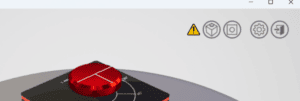
The exclamation symbol indicates that the front-end Quanser Interactive Labs graphic is not connected to the background real-time (RT) model.
With the exception of the Virtual QBot Platform, QCar, and QDrone 2, the RT model for the virtual experiment starts automatically when the virtual experiment is loaded. If the RT model does not start, try restarting the virtual experiment.
If the issue persists, it could be due to the Firewall or an antivirus software blocking the TCP/IP communication between the RT model and graphical front-end. See here for a listing of the port numbers used. Inbound/outbound exceptions can be created to allow communication on specific ports.
If using the Virtual QBot Platform, QCar, and QDrone 2, the RT model does not start automatically. The actor, e.g., QBot Platform, needs to be created/spawned using a Python or MATLAB script supplied with the resources, e.g., qlabs_setup.m or qlabs_setup.py, or your own script. See the lab procedure for the instructions on which script to run and the QLabs Actors Reference for more information on how to spawn actors.
2. QUARC Licensing
Yes. QUARC licenses are transferrable and not restricted to a single PC or laptop. Follow this procedure to transfer a license to a new computer:
- Uninstall the QUARC Real-Time Control Software from your computer.
- Move your QUARC License file (.qlic) from your old computer to the new one.
- Install the QUARC software on the new computer.
The QUARC installer can be downloaded from the QUARC webpage under the “Installer and Documentation” tab.
The QUARC version you can use is determined by your license. You can verify the supported version by typing the following into Windows File Explorer:
%QUARC_DIR%quanser_license_viewer.exe
The “maximum version” field indicates the highest version of QUARC that your license supports. The first value in the field represents the last two digits of the QUARC version “year”. For example, if a license has a maximum version of 26.65535 then it can be used up to QUARC 2026, along with any associated service packs.

If your license supports the newer version of QUARC, you don’t need to upgrade the license. You can download the latest installer directly from the QUARC website under the “QUARC Installer & Documentation” tab.

If your license does not support the version of QUARC you need, then contact info@quanser.com for upgrade options.
To find out what QUARC version you have installed, go to the QUARC Tray Icon in the bottom-right corner of your screen. Right-click on the icon and click on “About”.
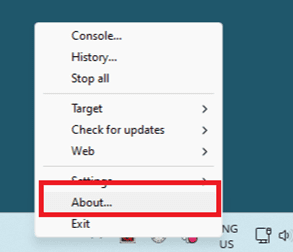
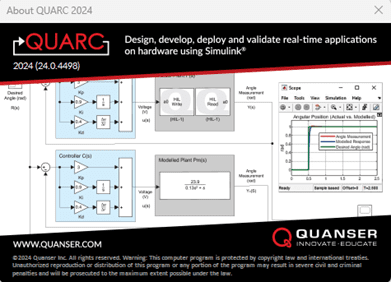
The version of QUARC and the build is shown in the dialog box:
The QUARC Real-Time Software (QUARC) offers various licensing options. Here is an overview of the different license types:
- Individual license is a license that can only be used on a single computer.
- Lab license is a local license that can be used on any computer in the same lab.
- Network license is a floating license with a limited number of seats shared amount computers on a network. This license type requires a license server on the same network. This type of license offers the benefit of sharing seats among multiple computers.
- Faculty license is license that can be used on any computers for the entire university. It also includes a subscription to the Quanser Interactive Labs (QLabs). This type of license can be managed on the same computer (local) or from a Server Machine (network).
To check whether your installed QUARC version supports your MATLAB version, open the compatibility chart by typing the following path into Windows File Explorer:
%QUARC_DIR%guides/QUARC_Compatibility_Table.html
If your MATLAB version is listed as compatible, you don’t need to upgrade QUARC. Otherwise, an upgrade will be needed. See this FAQ for more information.
3. QUARC
See the QUARC System Requirements for computer specification recommendations.
Starting with MATLAB R2019b, Simulink has greatly simplified building, downloading, connecting, starting, stopping, and disconnecting of real-time code with external mode operation.
To build, download, connect, and start the model for real-time external operation, click the button on the HARDWARE tab.
If the model is successfully built and downloaded to the target. Simulink will automatically connect and start the real-time code on the target and the button will automatically change to a button.
To stop the real-time code execution, click the button on the HARDWARE tab and Simulink will stop the real-time code on the target and disconnects from the target.
For additional information please refer to the following pages:
This error shown below can occur if the data acquisition (DAQ) or Quanser device (e.g., Qube-Servo) is not connected to the computer or not powered on.
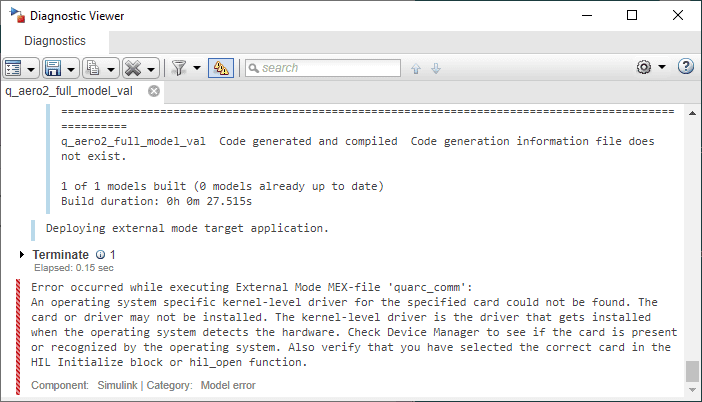
Make sure the Quanser device (e.g., Qube-Servo) or DAQ is connected to the computer. If using a system such as the Qube-Servo 3, Aero 2, and QArm, also make sure they are powered ON.
Go to Windows Device Manager to verify if the DAQ or Quanser device is being detected. The examples below show how the Q2-USB and QUBE-Servo 2 USB devices would show up detected.
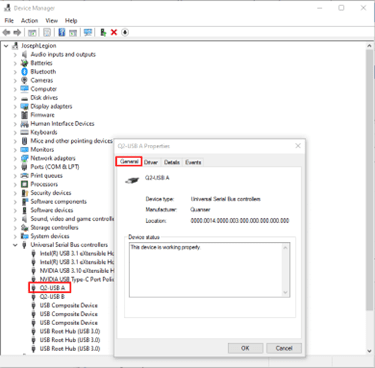
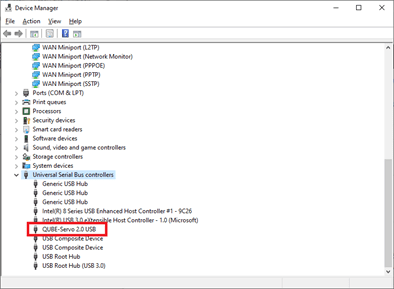
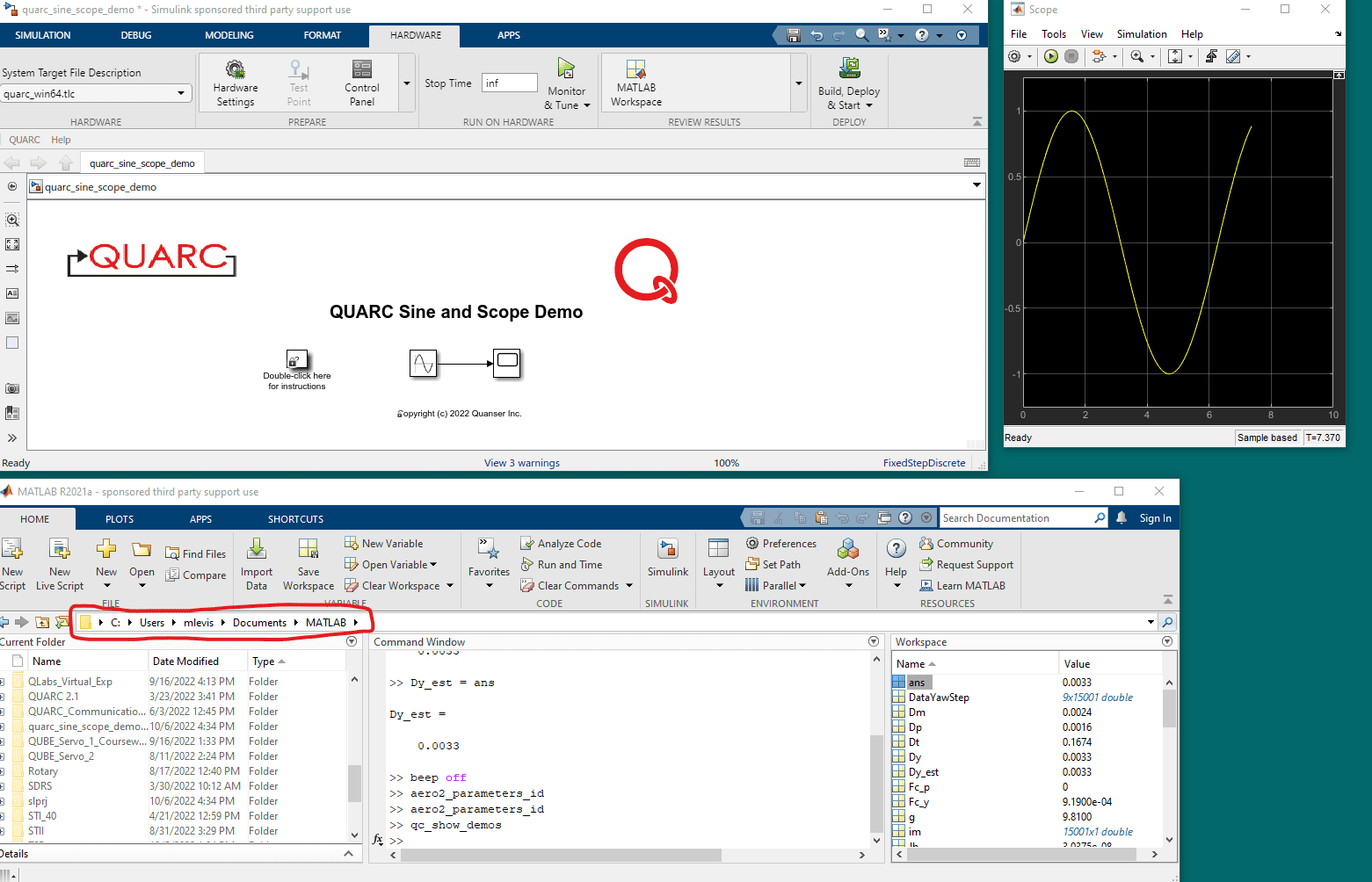
QUARC needs write permissions to generate the real-time code, i.e., when click on the Monitor & Tune button. The message below shows what happens when the Sine and Scope demo is ran in a folder that does not have write privileges.

Try saving the Simulink model in a folder that has write privileges and setting the MATLAB path to that location, e.g., C:\Users\<USER>\Documents\MATLAB folder. The example below shows the Sine and Scope demo running in this folder.
If the Board type field in the HIL Initialize block does not show any devices, then the QUARC license may not be configured properly or has expired if using a demo/trial license.
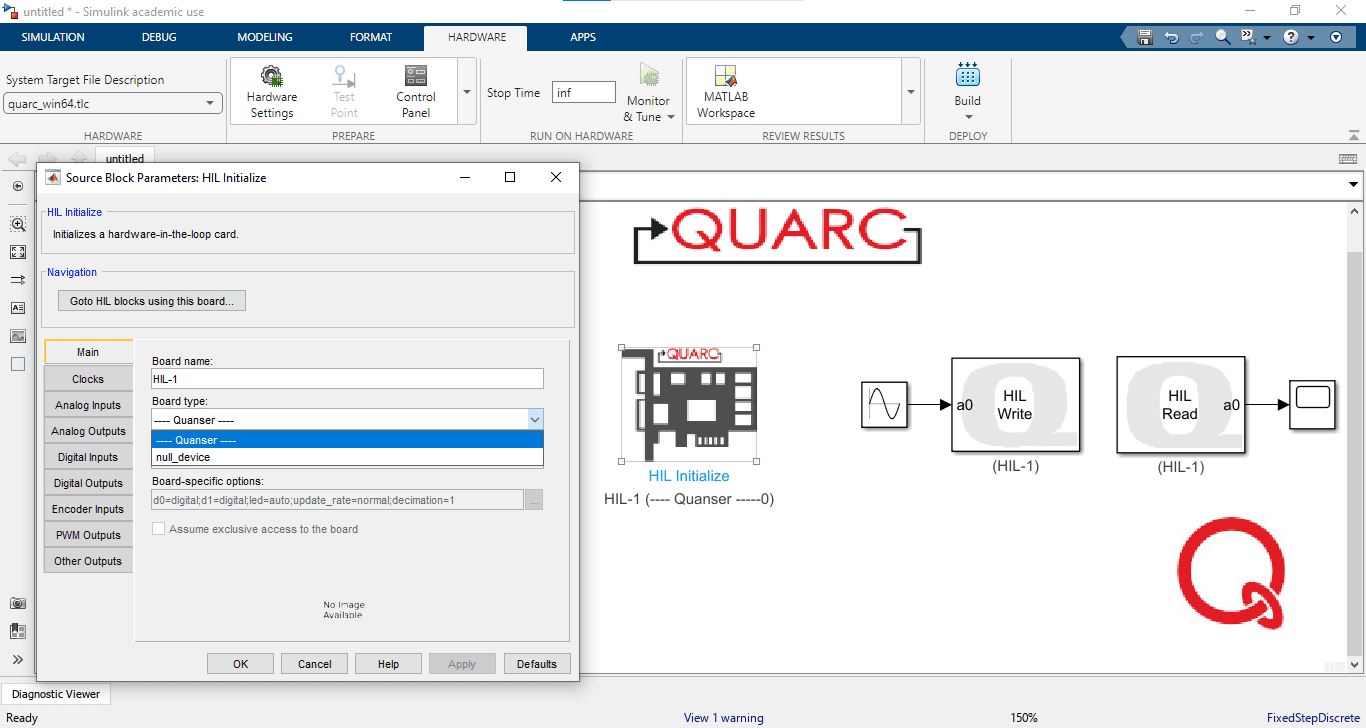
If you are using a demo/trial license, then run the QUARC License Viewer to see if it has expired. If you have a full QUARC license, then it may not be registered. Locate your QUARC license (*.qlic) file and double-click on it to launch the QUARC License Registration software. If this is a local license, then select the Configure License Manager and Configure products boxes are both checked, and then click OK.
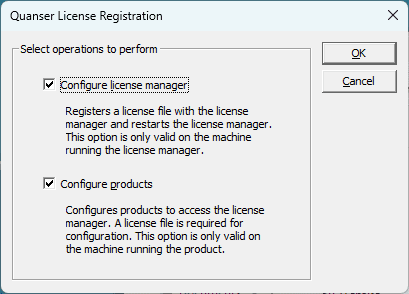
If you are using a QUARC network license, then see the instructions provided in the Configuring QUARC section in the QUARC help guide.
The QUARC Real-Time Control software may not be installed or QUARC may have been installed before MATLAB. If QUARC was not installed, then close MATLAB and install the QUARC Real-Time Control software as instructed in the Quick Installation Guide.
If QUARC was installed and MATLAB was installed after, then run the following commands:
cd(fullfile(getenv('QUARC_DIR'), 'quarc'));
quarc_setup;
This function adds QUARC Targets library to the MATLAB path and updates the MATLAB documentation. It also performs other setup tasks to make QUARC fully functional in MATLAB and Simulink.
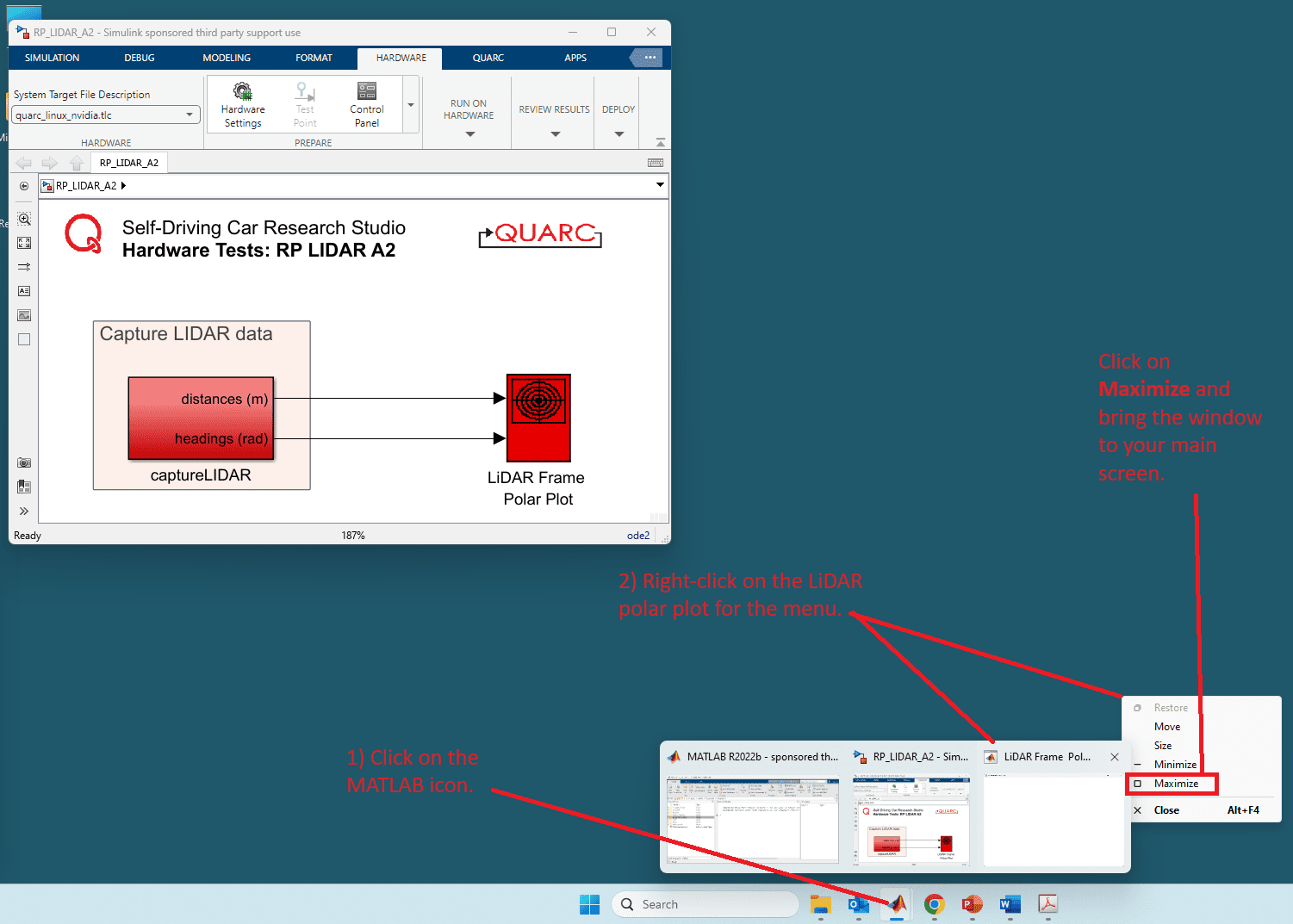
- Go to the MATLAB icon in the Windows taskbar.
- Right click the desired window.
- Select ‘Maximize’.
- Move window to main screen.
- Make sure you save the Simulink model before closing.
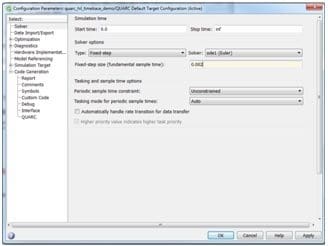
The sampling interval (1/sampling rate) is set in the fixed-step size (fundamental sample time) field in the Simulink diagram Configuration Parameters of your QUARC model. Go to the QUARC menu | Options | Solver.
Note: QUARC has a demonstration model that uses the “Sample Time” block from the QUARC targets library to measure the actual time between each sampling instant. Type qc_show_demos in the MATLAB command window, click on “QUARC Harware-In-Loop Timebase Demo”
You need to use blocks from QUARC TargetsData AcquisitionGenericTimebases category. Example: use the HIL Read Timebase block instead of the HIL Read from the Immediate I/O category. The Timebase blocks force the controller to use the DAQ timer instead of the PC clock and you can then go to higher sampling rates (depending on the capability of the DAQ).
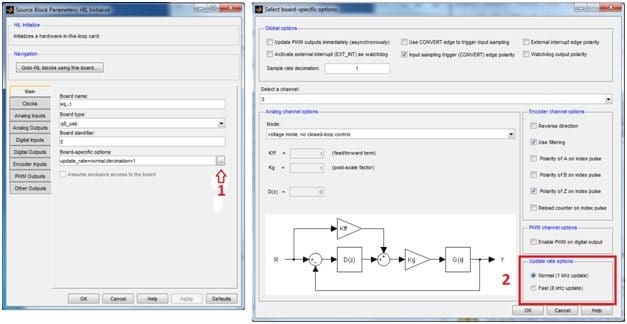
Quanser Q2-USB and Q8-USB DAQ device users: you also need to set the update_rate parameter in Board-Specific Options to “Fast Mode” in order to reach sampling rates higher than 1 kHz.
This image is an example of the Board-Specific Options window when Q8-USB DAQ is selected.
Refer to the “QUARC Data Logging Demo“. Type qc_show_demos in Matlab command prompt, scroll down and look for the demo, click on “Open this model“, build and run it. It’s QUARC help page describes the model and shows you how to save data to workspace or to a file.
Please check our QUARC communications demos. QUARC provides Basic/Intermediate/Advanced Communications Demos and from the QUARC help you’ll get complete documents of all resources available for serial communications in your project. Type qc_show_demos in the MATLAB command window, scroll down and look for the Communications Demos. You can start with the “QUARC Basic communications demo“.
We also recommend to check the Communications API at:
QUARC help/Quarc Targets/User’s guide/Quarc External Interfaces/C functions/Communications.
You can find there a complete document on Communications | Stream API | “Getting started with the Stream C API“
You can control two Quanser systems that are connected on two different computers – target 1 and 2 – simultaneously from one QUARC model running on a host computer..
- Type qc_show_demos in the MATLAB Command Window to get access to all QUARC demonstration models.
- Scroll down and look for the “Communications” group.
- Run the “QUARC Basic Communications Demo” to learn how “Stream Server” and “Stream Client ” blocks work.
- The host computer could have two Stream Server blocks. Each of these Server blocks would communicate with target 1 and 2. Each target PC would have a Stream Client block that would accept data from the host.
- To start, you can try sending a square wave to target 1 and a sine wave to target 2 from the host machine, then modify it to control the plants connected the target computers.
This error is usually caused when a model is being built in a directory where the user does not have full permission. It is always recommended to set the MATLAB working folder (i.e., where the QUARC model is built) to a local directory where the user has full permission (e.g., Documents, C:UsersjohnDocumentsMATLAB
The QUARC Video Capture block can be used, assuming the webcam is supported by the operating system on the QUARC target. This block is part of QUARC 2.6 (and later versions) and currently supported by the QUARC Windows and Linux embedded targets.
The captured video stream can then be displayed on the host machine using either the QUARC Video Compressed Display block (in QUARC 2018 or later) or the QUARC Video Display block.
QUARC generates code using the MATLAB Coder and Simulink Coder toolboxes. Therefore only S-Functions that are compatible with the MATLABCoder and Simulink Coder toolboxes and written in C/C++ are compatible with QUARC. Note that M-File S-Functionsare not supported by Simulink Coder.
For a listing of what toolboxes are supported for C/C++ code generation, please go to the following page on The MathWorks™ website: https://www.mathworks.com/help/coder/language-supported-for-code-generation.html
Here are some example reasons why an S-Function does not build or run in QUARC:
- It contains functions (e.g., from certain The MathWorks toolboxes) that are not compatible with MATLAB Coder and/or Simulink Coder toolboxes.
- It containsfile read/write operators.
- It contains or calls third-party drivers that are not supported.
- It contains an algorithm that itself may not be supported by the MATLAB Coder and/or Simulink Coder toolboxes for real-time execution (e.g., non-causal algorithms).
In addition if the custom S-Function cannot be compiled and run with The MathWorks™ Generic Real-Time(GRT) target, it will not be compatible and work with QUARC. However if it does compile and run with the GRT target, it is not guaranteed to work in QUARC. QUARC runs in a protected real-time environment that may not support third-party drivers, particularly those that attempt to access Microsoft Windows GUI elements, such as window handles (HWND).
Please refer to the following The MathWorks™ website for the limitations on the S-functions: http://www.mathworks.com/help/simulink/sfg/s-function-limitations.html
Not all S-Functions are compatible with real-time operation in External simulation mode. This is mainly due to the C/C++ code calling functions that are not supported by the MATLAB Coder and/or Simulink Coder toolboxes. If you have to use these unsupported functions for your application in External mode, then as a workaround you should be able to set up a QUARC communication client/server configuration between two QUARC models, one running in Normal mode and the other running in External mode. In this configuration, the S-Function could be run in a communication client Simulink model configured for Normal simulation mode, and sending/receiving data to/from a QUARC-based Simulink model running in External mode, i.e., the communication server. The real-timecommunication between both client and server models can be readily implemented using the QUARC Stream blocks. For more information and details on how to do this, please refer to the QUARC communication built-in demos. These demos can be located by typing qc_show_demos in the MATLAB command window.
Note: When implementing the QUARC-based Simulink client model to run in Normal mode, make sure you also use the QUARC System Timebase block. This will slow down theNormal mode simulation time to make it run in pseudo-real-time, in a way that is compatible with its communication server model counterpart running in External mode.See the QUARC User Manual for more information.
Technical Support
For over 20 years, Quanser has put as much emphasis on fostering and building our relationships with customers as on developing the best functional solutions.